
Why Your Facebook Ads Keep Getting Rejected, and How to Fix Them
Learn how to fix your rejected ads on Facebook or Instagram
-
1. Find Your Rejected Ad(s)
Find this through your ads manager to take note of all rejected ads. Further instructions are listed below.
-

2. Find Out WHY Your Ads Has Been Rejected
Meta will tell you which rule your ad violated if you know how to look. It’s common for Meta to make mistakes, so you must look into it yourself as well.
-
3. Fix Your Rejected Ad!
Once you know which rule is being flagged, you’ll have a better idea on how to fix it. Below gives you a step-by-step. Don’t skimp, read each word!
1. Find Your Rejected Ad(s)
Do all of this through a computer, not your phone!
A. Go to https://adsmanager.facebook.com/adsmanager
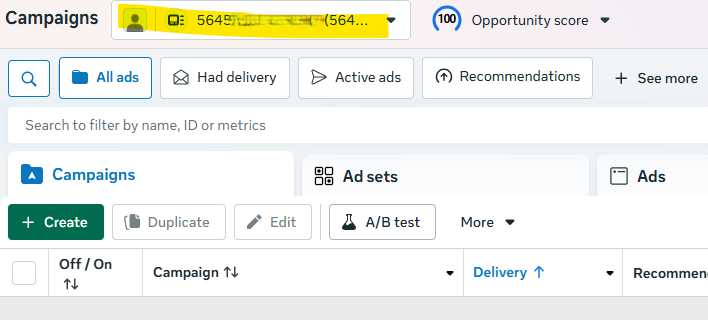
B. Make sure you’re in the right account (highlighted below, top left).

C. Hit the checkbox next to “Campaigns” to select all.
D. Click on “Ads” to view all of your ads, scroll until you find your rejected ones.
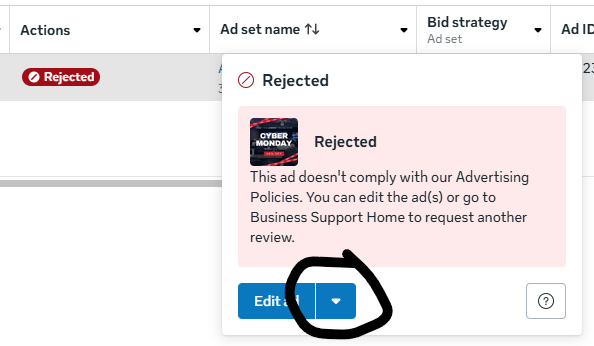
E. Hover over actions > rejected. Hit the dropdown arrow, then click on “Go to Business Support Home.”
F. On the next page, find your ad that was rejected.
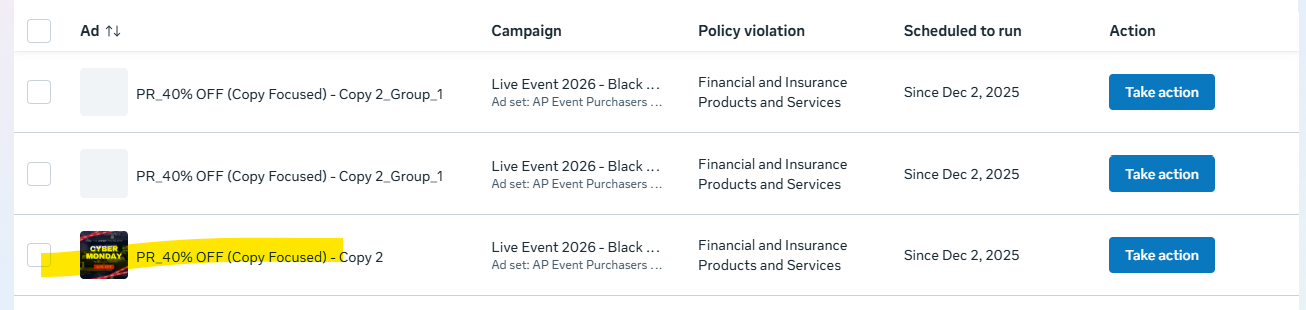
At the time of writing this, there is a glitch on the Business Support page!!!
The ones that appear with images, such as this one below, are typically the ones that have been rejected. The ones without images are typically not rejected.
See the image below. Notice how there is an image next to the third ad listed? This is the ad that has been rejected out of the three.
2. Find Out WHY Your Ad Has Been Rejected
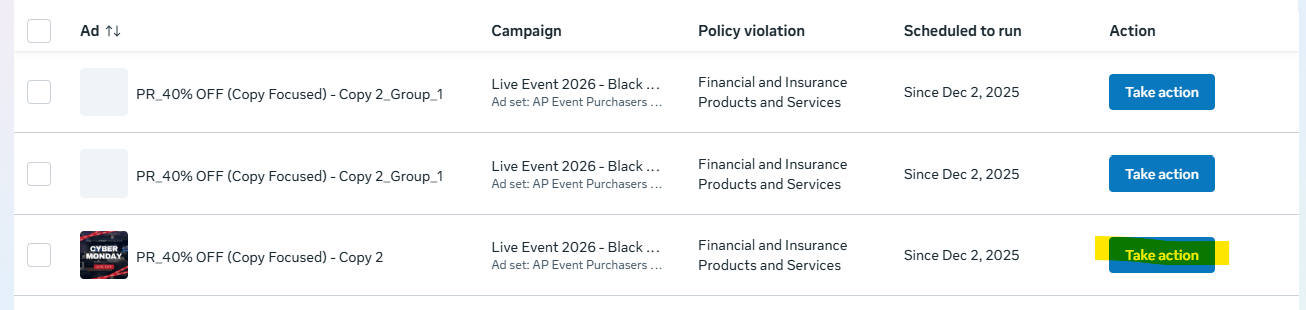
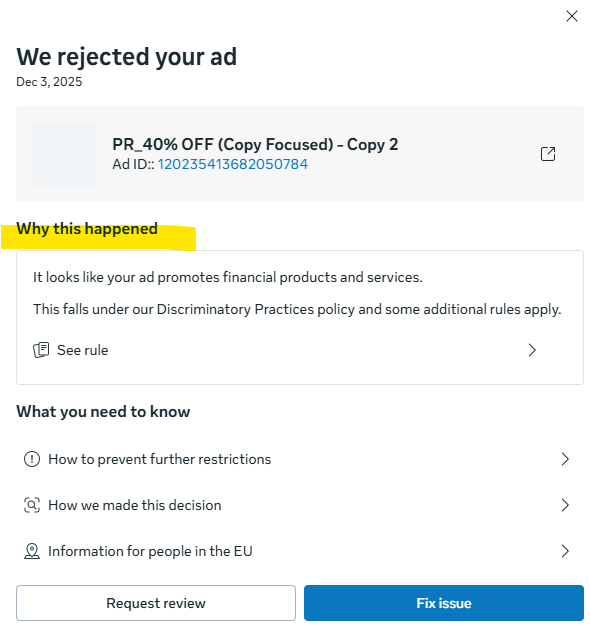
Do all of this through a computer, not your phone!
A. On the same page as above, click on Take Action next to your rejected ad.
B. Under “Why this happened,” it will tell you the reason why your ad has been rejected.
NOTE: IT IS COMMON FOR FACEBOOK TO REJECT ADS THAT ARE NOT VIOLATING ANY RULES.
YOU MUST CHECK THIS YOURSELF TO SEE IF YOUR AD IS VIOLATING A RULE OR IF FACEBOOK IS BEING DUMB.
C. Click on “see rule” to assess the rule of why your ad is being rejected.
D. Evaluate if your ad has broken the rule listed.
3. Fix Your Rejected Ad!
Do all of this through a computer, not your phone!
If you think your ad violates any rules: you must edit the ad to follow the rules and try running it again.
There is usually always a way to get your ad up and running again!
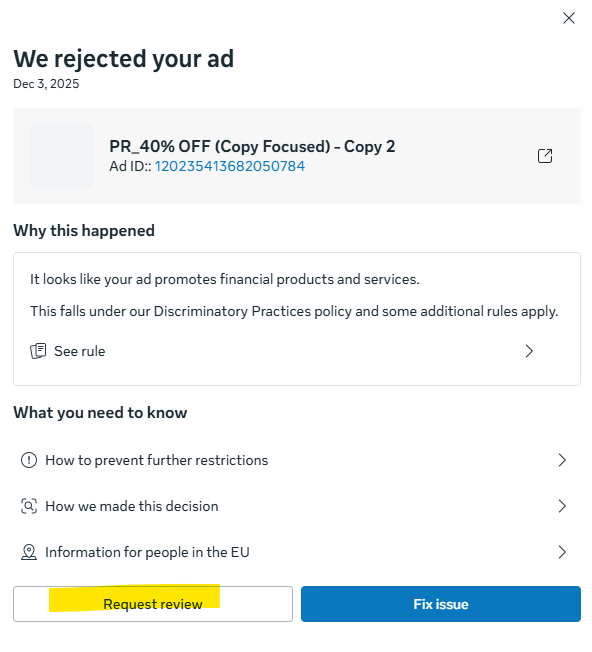
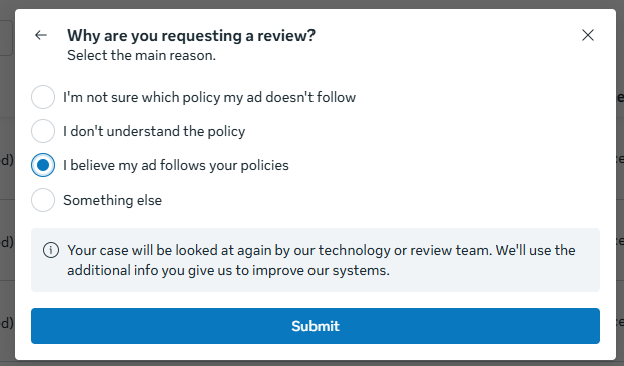
If you think your ad is not violating any rules or if you’re unsure: request a review and choose “I believe my ad follows your policies.”
You should hear back on if your ad passed this review in a couple of days.
This puts your ad through another, more manual, review. Typically, if your ad isn’t violating a rule, this will fix the issue (but not always).
NOTE: You can always check the status of your account at https://www.facebook.com/business-support-home
(Make sure you’re in the right account and then click on “view account”)
We’re Here to Help!
If you’re still having issues, we can help diagnose and fix your ads!
Purchase a one-hour consult call here.

Best for simple ad fixes, reviewing errors, or quick campaign tweaks. A lot can happen in just one hour! Please come prepared and logged in ahead of time.